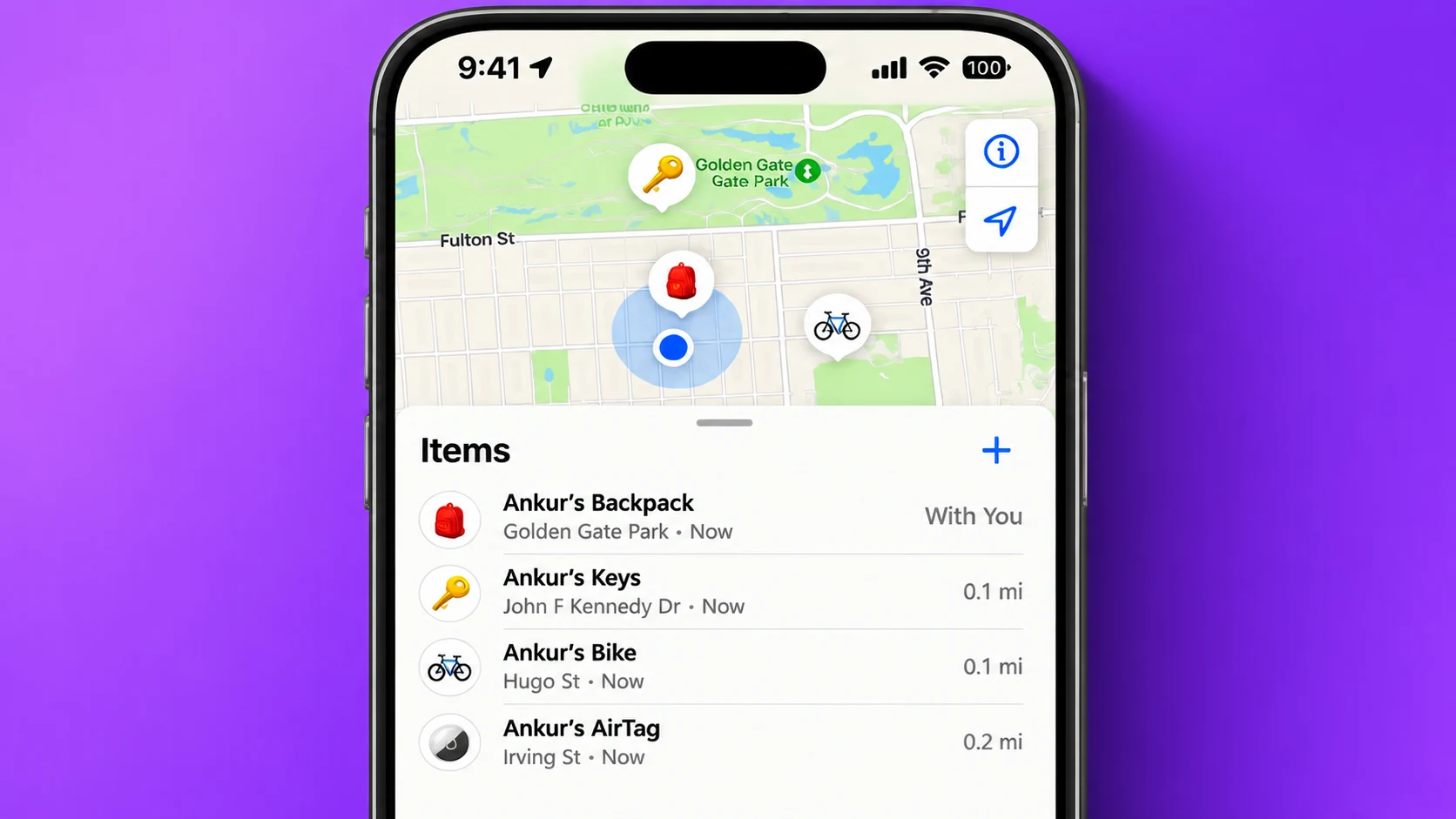

Apple AirTags make it easier to locate everyday belongings such as keys, wallets, backpacks, and luggage. Once an AirTag is connected to your Apple Account, you can use Apple’s Find My app on your iPhone or iPad to check its location and get help finding the item.
Depending on how far away the AirTag is, you can use nearby tracking, play a sound, or open directions in Maps. If the item is offline, Find My may also show its last known location or notify you when it is detected again.
In this guide, you’ll learn how to locate an AirTag, use the available tracking features, and troubleshoot common problems when it doesn’t appear in the app.
How to Track Location of Your AirTags in Apple’s Find My App
Before you start, make sure your AirTag has been set up and linked to the Apple Account you use on your iPhone or iPad. An AirTag that hasn’t been paired with your account won’t appear among your items.
Follow these steps to locate it:
- Open the Find My app on your iPhone or iPad.
- Select the Items tab at the bottom of the screen.
- Find and tap the AirTag attached to the item you want to locate.
- Check the location shown on the map.
- If the option is available, tap Find to get help locating it nearby.
The available controls may vary depending on your device, software version, and whether the AirTag is within range.
Find a Nearby AirTag With Precision Finding
If you have a compatible iPhone, Precision Finding can help you locate an AirTag more accurately when you are nearby. It uses Ultra Wideband technology, along with other device sensors, to provide directional guidance.
When Precision Finding is available, your iPhone may display an arrow, the approximate distance to the AirTag, and instructions to help you move in the right direction. Follow the prompts and adjust your direction as you get closer.
Precision Finding requires a compatible iPhone and AirTag, and it may not be available in every situation. If you don’t see the Find option, you can try playing a sound or using the map instead.
Play a Sound to Locate Your AirTag
Sometimes the map shows that your AirTag is nearby, but you can’t see the item. It might be under a cushion, inside a bag, or somewhere else out of sight.
In that case:
- Open Find My and select Items.
- Choose your AirTag.
- Tap Play Sound, if the option is available.
- Listen for the sound and follow it to locate the item.
This feature is especially useful when you are searching indoors or in a small area. If you find the item, you can stop the sound or exit the tracking screen.
Track Mobile Number
Checking demo information, please wait…
Demo only: This page does not access telecom databases or determine a phone’s real-time location. The operator is the option selected above, and no actual location has been retrieved.
How to Use Maps and Notifications in Find My
If your AirTag is not nearby, you may still be able to use Find My to work out where to search next. The app can show its reported location or last known location, depending on when it was detected.
Get Directions to Your AirTag
You can use Apple Maps to navigate to the location displayed for your AirTag.
- Open the Find My app.
- Tap Items and select the relevant AirTag.
- Check the location on the map.
- Tap Directions to open the location in Maps.
- Choose a suitable route and follow the navigation instructions.
Maps can help you travel to the place where your AirTag was last reported. However, this doesn’t guarantee that the item is still there, particularly if the location was recorded some time ago.
AirTags don’t have their own GPS or a direct internet connection. They use Bluetooth to communicate with nearby Apple devices, which can securely relay their location through the Find My network. As a result, the location may not update continuously, especially in places with few nearby Apple devices.
Turn On the Notify When Found Alert
If your AirTag is currently offline, you can enable a notification so you know when Find My detects it again.
- Open Find My and go to Items.
- Select your AirTag.
- Look for the Notifications section.
- Turn on Notify When Found, if available.
Once the AirTag is detected again and its location becomes available, Find My can send you a notification. This is useful if you have left an item somewhere and cannot return to search for it immediately.
You should also check the location and the time associated with the last reported position. That information can help you decide where to look first.
What to Do If Your AirTag Doesn’t Appear in Find My
If you open Find My but can’t see your AirTag or its location isn’t updating, check your account, settings, and battery. The following fixes can help identify the cause.
1. Check the Apple Account Used to Set Up the AirTag
An AirTag is associated with the Apple Account used during setup. If you are signed in with a different account, it may not appear in your Items list.
To check your account:
- Open Settings on your iPhone or iPad.
- Tap your name at the top.
- Check which Apple Account is signed in.
- Confirm that it is the account used to set up the AirTag.
If the AirTag was previously owned by someone else, the previous owner may need to remove it from their account before you can set it up with yours.
2. Check Location and Find My Settings
Location settings can affect how your device displays and uses location information.
On your iPhone, open:
Settings → Privacy & Security → Location Services
Make sure Location Services is enabled. Then check the Find My app’s available location permissions and review the Find My settings associated with your Apple Account.
Also check that Bluetooth is enabled, your device has an internet connection when needed, and your iPhone or iPad is running a supported software version.
Keep in mind that turning on location access alone will not make an offline AirTag appear or force it to update. The AirTag must also be properly set up and detected by the Find My network.
3. Check or Replace the AirTag Battery
A depleted battery can prevent an AirTag from reporting its location. If the AirTag is unresponsive, try replacing its battery.
AirTags use a replaceable CR2032 coin-cell battery. To replace it:
- Press down on the stainless-steel battery cover.
- Turn the cover counterclockwise and remove it.
- Take out the old battery.
- Insert a new compatible CR2032 battery, following the polarity markings.
- Replace the cover and turn it clockwise until it locks.
Some CR2032 batteries with bitterant coatings may not work properly with AirTags. Check the battery packaging for compatibility information before purchasing one.
After replacing the battery, open Find My and check whether the AirTag is responding. If it still doesn’t appear, verify that it remains linked to your account and consider following Apple’s troubleshooting guidance.
Final Thoughts
Apple’s Find My app gives you several ways to locate belongings attached to an AirTag. You can check the map, use Precision Finding on a compatible iPhone, play a sound when the item is nearby, or get directions to its reported location.
If an AirTag is offline, check its last known location and enable Notify When Found when that option is available. If it doesn’t appear in the app, verify the Apple Account used during setup, review your settings, and check the battery.
Remember that AirTag locations depend on nearby Apple devices detecting the tracker, so updates may not always be immediate. Using the available Find My features together can make searching for misplaced belongings much easier.