
Your Android phone automatically saves a record of the calls you make, receive, or miss. These records, known as call history or call logs, help you check recent conversations and quickly call someone back. However, you may not always want to keep every entry in your Phone app.
Whether you want to remove a particular number, delete several old calls, or erase your entire call log, Android offers simple ways to manage these records. The exact steps can vary depending on your phone’s brand and the Phone app you’re using.
In this guide, we’ll explain how to clear call history on Android, including instructions for Samsung, Xiaomi, Redmi, POCO, Realme, OPPO, and OnePlus devices.
What Is Call History on Android?
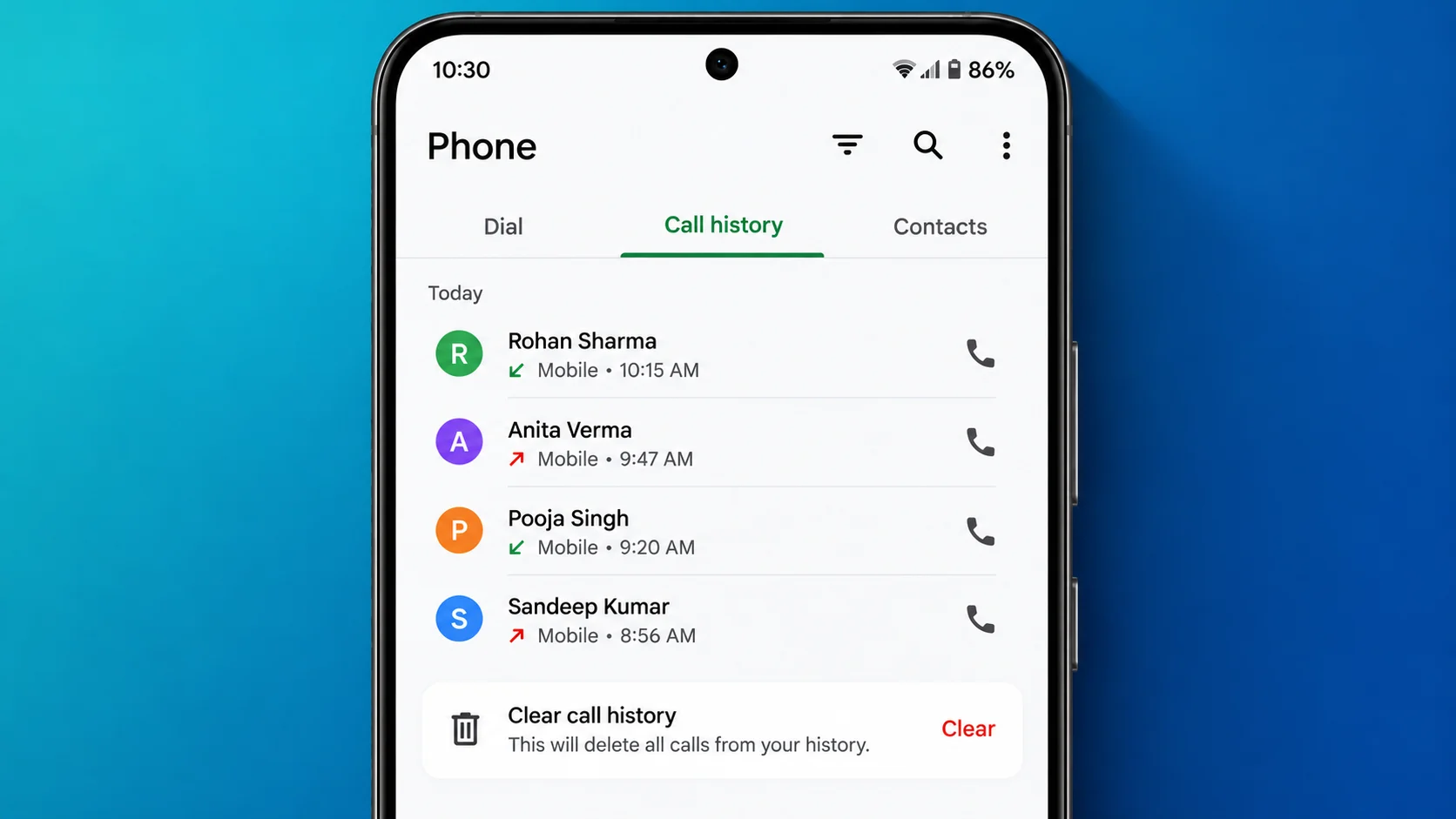
Call history is a list of recent phone calls saved in your device’s Phone app. Depending on the app, each entry may show details such as:
- The caller’s name or phone number
- The date and time of the call
- Whether the call was incoming, outgoing, or missed
- The duration of the call
Your phone saves these records automatically, making it easier to review recent communication. You can remove individual entries or clear multiple records whenever necessary.
Why Clear Call History?
There are several reasons to delete old call records from your Android phone.
Privacy: Removing call entries can help keep your recent communication private from someone who has access to your unlocked phone.
A cleaner call log: If you receive frequent calls, your Recents list can quickly become crowded with unnecessary entries.
Easier call management: Removing unwanted records makes it simpler to find recent or important calls.
Removing outdated information: You may prefer not to keep old call records once you no longer need them.
Keep in mind that call history generally takes up very little storage space. Clearing it is mainly useful for privacy and organization rather than freeing up significant storage.
Method 1: Delete a Single Call From History
If you only want to remove one call record, there’s no need to clear the entire list.
Follow these steps:
- Open the Phone app on your Android device.
- Tap Recents, Recent Calls, or Call History.
- Find the call entry you want to delete.
- Tap the entry or press and hold it, depending on your Phone app.
- Look for Delete, Remove, or a similar option.
- Confirm the deletion if prompted.
The selected call record should now disappear from your recent calls list.
Tip: Some Phone apps open the call details when you tap an entry. If that happens, look for the trash icon or the three-dot menu to find the delete option.
Method 2: Delete Multiple Call Records at Once
Want to remove several calls without deleting every entry? You can usually select multiple records and delete them together.
- Open the Phone app.
- Go to the Recents or Call History section.
- Tap the three-dot menu or the Edit option, if available.
- Select Select, Edit, or Delete.
- Mark the call records you want to remove.
- Tap Delete and confirm your choice.
Your selected entries will be removed from the call log.
The selection process differs between Phone apps. On some devices, you may need to press and hold a call entry to enter selection mode.
Method 3: Clear the Entire Call History
If you want to remove all the call records shown in your Phone app, look for an option to clear or delete the complete call log.
- Open the Phone app.
- Navigate to Recents or Call History.
- Tap the three-dot menu in the corner.
- Look for Clear call history, Delete call log, or a similar option.
- If the app offers a selection screen instead, choose Select all.
- Tap Delete and confirm the action.
Once the process is complete, the call records covered by that action should be removed.
Important: Check the selected entries before confirming. Some apps let you select all records, while others provide separate options for clearing different types of call entries.
Get Call Details
Preparing demo…
Please wait a moment.
Demo only: this page does not retrieve real call records. Downloaded files contain sample information, not private telecom records.
How to Clear Call History on Different Android Phones
The menu names can differ between manufacturers. Here are the usual steps for popular Android brands.
Samsung Galaxy Phones
- Open the Phone app.
- Tap Recents.
- Tap the three-dot menu.
- Select Delete.
- Choose individual entries or tap All, if available.
- Confirm by tapping Delete.
Samsung’s menu layout may vary depending on the device and software version.
Xiaomi, Redmi, and POCO Phones
- Open the Phone app.
- Go to the recent calls list.
- Open the available menu or enter selection mode.
- Select the call records you want to remove.
- Use Delete or the available clear-history option.
- Confirm your selection.
If your phone uses Google’s Phone app instead of a manufacturer-specific dialer, follow the options displayed in that app.
Realme and OPPO Phones
- Launch the Phone app.
- Open Recents or the call log.
- Press and hold a call entry or open the menu.
- Select Delete or enter selection mode.
- Choose the records you want to remove.
- Confirm the deletion.
OnePlus Phones
- Open the Phone app.
- Visit the Recents tab.
- Open the call entry’s menu or press and hold it.
- Select the delete option.
- Select additional records if needed.
- Confirm the action.
OnePlus devices may use Google’s Phone app, so the available options can depend on the installed dialer and software version.
Can You Recover Deleted Call History?
Recovering deleted call records is not always possible. Once a record has been removed, it may no longer be available in the Phone app.
However, recovery might be possible if a suitable backup was created before the records were deleted. Your options depend on the phone, backup settings, and services you use.
Consider these possibilities:
- Google backup: Check whether your device backup includes the relevant call history data. The information available can vary by device and backup configuration.
- Manufacturer or cloud backup: Some phones or backup services may preserve call-related data.
- Mobile carrier records: Your carrier may provide certain call details, depending on its policies and the type of calls involved. These records are not the same as restoring your phone’s local call log.
- Recovery software: Some tools advertise call-log recovery, but results are uncertain. Avoid apps that request unnecessary permissions or promise guaranteed recovery.
If the call records are important, check your existing backups before making further changes to your device. Don’t assume that enabling backup after deletion will restore previously removed calls.
What Happens When You Delete Call History?
Deleting call history removes the corresponding entries from your Phone app, but it does not usually affect other information stored on your phone.
For example, clearing your regular phone call log does not normally:
- Delete saved contacts from your Contacts app
- Remove SMS messages
- Delete WhatsApp chats
- Delete WhatsApp call history
- Cancel your mobile number or SIM service
WhatsApp and other calling apps maintain their own call records. You’ll need to manage those records separately within each app.
Also, deleting a call from your phone does not necessarily delete related records maintained by your mobile carrier or another service.
Common Problems When Deleting Call History
The Delete Option Is Missing
If you cannot find the delete option, try pressing and holding the call entry or opening its details. You can also check the three-dot menu or look for an Edit option.
If the layout still looks different, make sure you’re using the correct Phone app and check whether an update is available.
Deleted Calls Appear Again
Call records may return if data is restored from a backup or if a particular app synchronizes call-related information. First, check whether the entries are genuinely being restored or whether they belong to a separate calling app.
Avoid repeatedly deleting records without identifying the source of the issue.
You Cannot Select All Calls
Some Phone apps don’t provide a dedicated Select all button. You may need to select records individually or use a different menu within the call log.
The available options depend on the app and Android version.
The Call Log Looks Different on Your Phone
Android doesn’t have one identical Phone app interface across every device. Google Phone, Samsung Phone, and other dialers may organize their menus differently.
Look for equivalent options such as Recents, Call history, Edit, or Delete rather than relying on one exact menu layout.
Frequently Asked Questions
Does deleting call history remove saved contacts?
No. Deleting call records normally removes only the entries in your call log. Saved contacts remain in your Contacts app.
Can I delete just one person’s call history?
Yes, if your Phone app lets you select individual call entries. You can remove specific calls without clearing the rest of your history. If you have several calls with the same person, check whether the app groups them together.
Does clearing call history delete WhatsApp calls?
No. Regular phone call history and WhatsApp call history are managed separately. To remove WhatsApp call entries, open WhatsApp and manage them from its Calls tab.
Will clearing call history make my phone faster?
Usually, you won’t notice a meaningful speed improvement because call logs use very little storage and processing power. The main benefits are a cleaner list and better control over the records displayed in your Phone app.
Can someone still see my deleted call history?
The deleted entries should no longer appear in the Phone app’s call log, but deletion doesn’t guarantee that every copy of the information is gone. Carrier records, previously created backups, or records in other apps may still exist.
Is it possible to clear call history without deleting contacts?
Yes. Use the delete or clear-history options inside the Phone app. Avoid deleting contacts from the Contacts app, as that is a separate action.
Final Thoughts
Clearing call history on Android is straightforward once you know where to find the right option. You can remove one unwanted entry, select several calls, or clear the available call log using your Phone app’s built-in controls.
Because menu layouts differ between Android devices, the exact steps may not be identical on every phone. Start with the Recents section and look for the delete or selection options available on your device.
Before clearing everything, make sure you don’t need any of the records later. Once deleted, call history may be difficult or impossible to recover without a suitable backup.