Windows 11 Just Got a Big Visual Fix — And It Changes How Search Looks on Your Screen
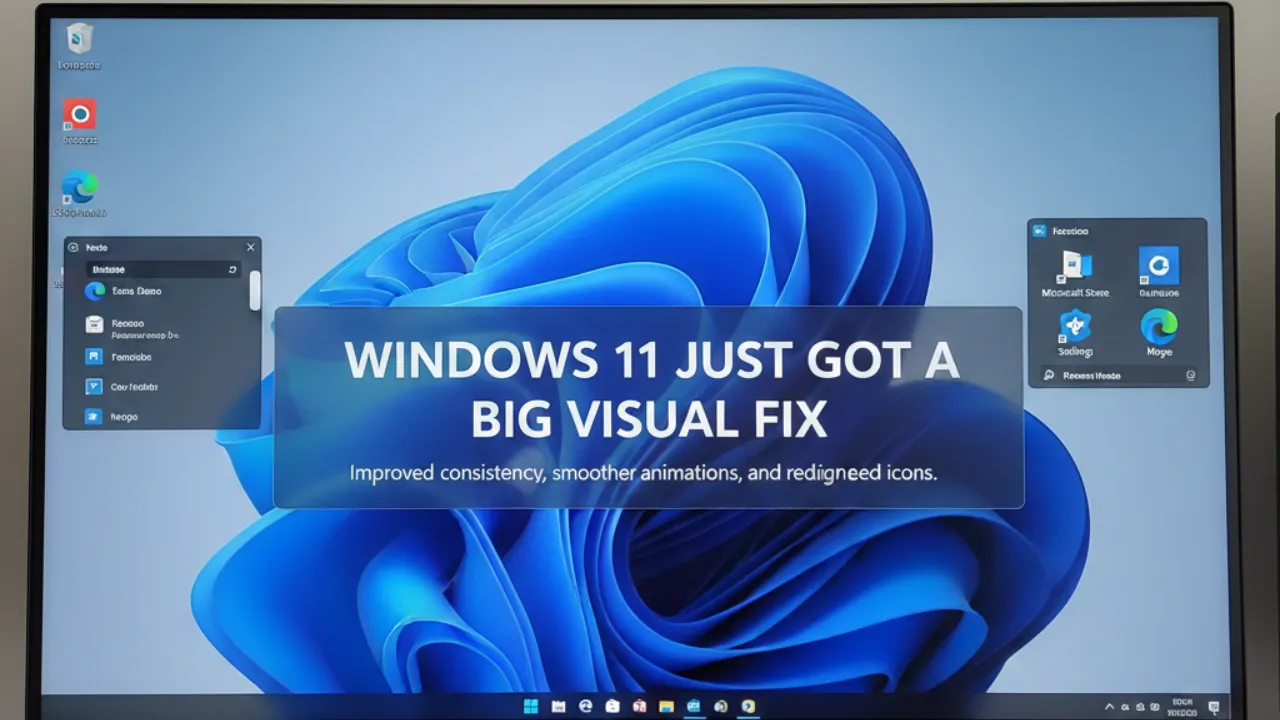
Microsoft is finally addressing one of Windows 11’s most noticeable design mismatches. With the new November 2025 optional update (KB5070311), the Windows Search UI now matches the height of the Start menu, making the two finally look consistent. The change will roll out to all users in the December 2025 Patch Tuesday update.
For years, Windows Search has looked oddly small compared to the Start menu. It wasn’t a functional problem, but the size gap became even more obvious after Microsoft introduced its redesigned, taller Start menu. When users clicked into Search—especially from the Start menu’s built-in search bar—the sudden jump to a smaller window felt strange and visually jarring.
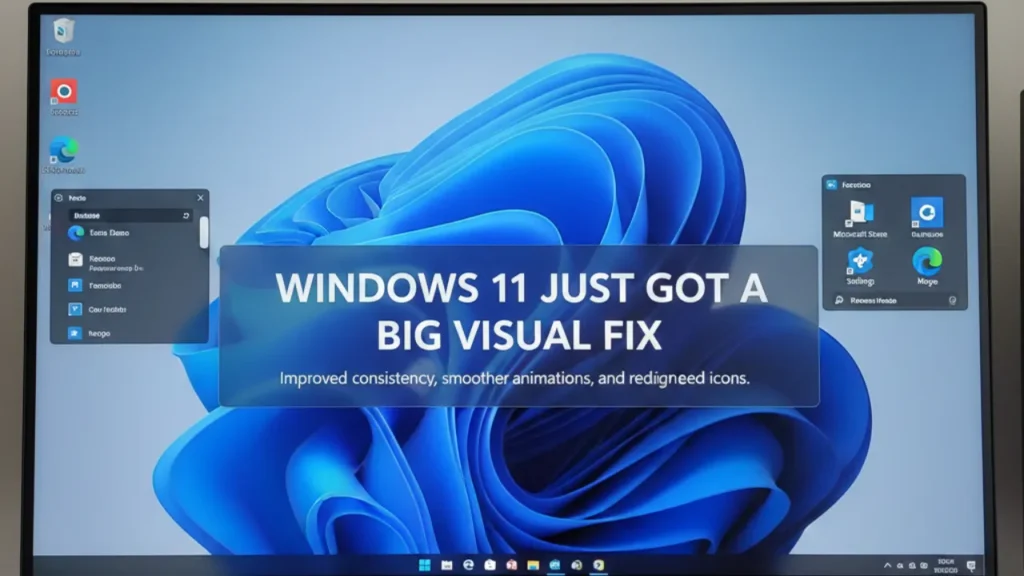
If you’ve never compared the two side-by-side, the difference is surprisingly big. Before installing KB5070311, the Start menu on my Windows 11 device (running the October 2025 Patch Tuesday update) appeared significantly taller than the Search UI. After installing the new update, the Search UI becomes much larger and now sits at the same height as the Start menu on my system.
A Taller Search Box That Takes More Screen Space
After applying the update, the Search interface takes up noticeably more vertical space. On some display resolutions or scaling settings, the Search window can cover up to 70% of the screen. While that may sound overwhelming, users can tweak display settings if it feels too large.
Personally, I like the new consistent look. It aligns better with Windows 11’s design language. However, there’s still one issue: the Search UI appears slightly shifted to the right, not perfectly aligned with the Start menu. It’s a minor visual glitch but noticeable once you see it. Hopefully, Microsoft will refine this in upcoming updates.
Microsoft Rebrands “FAQ” to “Device Insights” — And It’s Much More Useful
Another notable change arriving with the same update is the renaming of the “FAQ” section in Settings > System > About to “Device Insights.” Unlike the old FAQ page, this new feature gives users clear, straightforward assessments of their system performance—and Microsoft doesn’t sugarcoat it.
Device Insights is aimed at everyday users but works surprisingly well even for enthusiasts. It provides simple, honest explanations about what your PC can and cannot handle, based on its hardware.
For example, one of my devices has 8GB of RAM, and Device Insights plainly states that this memory level is suitable only for “regular browsing and usage.” Another test machine of mine with 6.88GB of usable RAM falls into the 4–8GB category, which Windows describes as suitable for “basic tasks.”
Interestingly, none of these insights are AI-generated. Microsoft has hardcoded descriptions into Windows 11 for different hardware ranges. These descriptions reflect what Microsoft engineers believe is the real-world capability of common configurations.
RAM Recommendations: Microsoft Says What Everyone’s Been Thinking
The insights also highlight something most Windows users already know: 8GB RAM is no longer enough for a smooth Windows experience. While 4GB remains the minimum requirement for Windows 11—and most new devices ship with at least 8GB—the OS itself acknowledges that users will struggle with tasks beyond basic browsing and document editing unless they have more memory.
According to Microsoft’s definitions:
- 4–8GB RAM is meant for browsing, email, and light office work
- Apps like gaming, video editing, and photo editing will be “challenging” with 8GB or less
- The implication is clear: 16GB should now be the standard
GPU Expectations: Minimum 4GB for Serious Work
Device Insights also comments on GPUs. Microsoft says any GPU with less than 4GB VRAM will struggle with high-end games or heavy video tasks, resulting in lower performance and reduced quality.
This kind of transparency is refreshing. Instead of vague system recommendations, Windows now directly tells users whether their PC is strong enough for modern workloads.
A New Device Card in Settings
Alongside Device Insights, Microsoft has added a new “Device Card” on the Settings Home page. It provides a quick summary of important system specs. Clicking on it takes you directly to the detailed “About” page, making it easier for users to find hardware information.
Also read;
Android 16 QPR2 Is Here — Google Pushes Its Biggest Update Shift in Years for Pixel Users
Vivo X300 Series Arrives in India: Prices, Specs, Offers & Everything You Need to Know!
iPhone 16 Now Available for Under ₹40,000 During Black Friday Sales: Here’s How to Get the Best Deal








Post Comment