How to Set Voice Lock on Android and iOS Devices: A Step by Step Guide
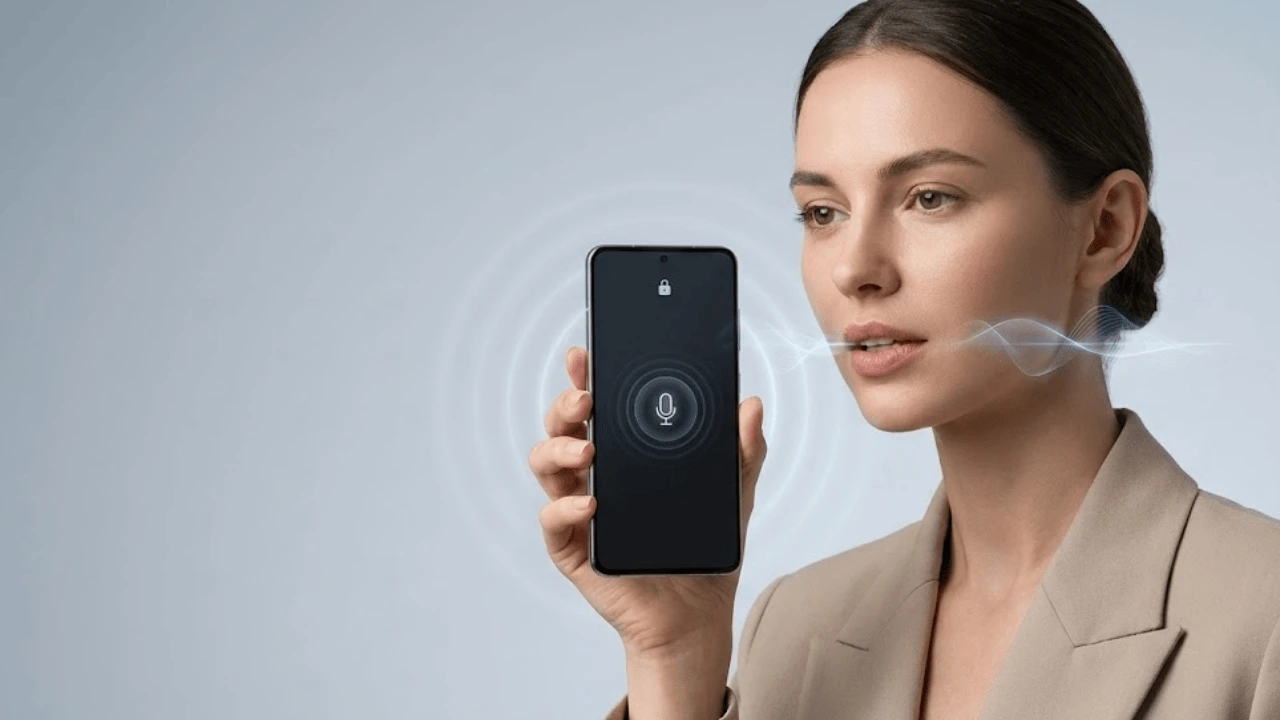
The days of fumbling with PINs, patterns, or even fingerprints are slowly being replaced by the sheer convenience of biometric security. One of the most futuristic ways to access your phone is through a Voice Lock—using your spoken command to unlock your device.
While a dedicated “Voice Lock” feature like a PIN isn’t standard on most modern phones, both Android and iOS offer powerful, voice-activated accessibility and assistant tools that allow you to bypass the lock screen using your voice. This guide will walk you through setting up voice control access, detailing the tools, features, and security considerations involved.
Security Note: Voice Control vs. Biometrics
It is crucial to understand that voice commands are generally considered less secure than hardware biometrics like Face ID or fingerprint scanning.
- Security Risk: Most voice unlock methods (especially on older Android versions or third-party apps) display a warning that someone with a similar voice or even a high-quality recording of your voice might be able to unlock the device.
- Convenience over Security: These features prioritize convenience and accessibility. For maximum security, always keep a secondary method (PIN, pattern, or Face ID/Fingerprint) enabled.
Android: Using Voice Access and Smart Lock
Android primarily utilizes Google Assistant and Voice Access for hands-free control, sometimes leveraging a feature called Trusted Voice (part of Smart Lock) to bypass the main lock screen.
Step-by-Step Guide (Using Voice Access)
- Check Prerequisites: Ensure your device runs Android 5.0 or later and the Google app is updated.
- Download/Enable Voice Access:
- Go to the Google Play Store and download the Voice Access app (if not pre-installed).
- Open your device’s Settings app.
- Tap Accessibility, then select Voice Access.
- Toggle Use Voice Access to ‘On’.
- Set Up the Voice Model (if needed): To ensure Google recognizes your voice, you may need to set up or retrain your Voice Match model (often done via the Google or Google Assistant settings).
- Activate on Lock Screen: In the Voice Access settings, you may find an option like Activate on lock screen. Enabling this allows you to trigger voice commands when the screen is on but locked (though you often still need to say a PIN/password to complete the unlock for security-sensitive actions).
- Use the Command: Say your designated wake word (usually “Hey Google” or “Ok Google”) followed by the command to start Voice Access. For full unlock, you generally need to be using the PIN screen lock option and then speak your PIN.
What are the Features?
- Hands-Free Control: Control nearly every aspect of your phone, including opening apps, navigating menus, and typing messages.
- Lock Screen Activation: Can be set to activate when the screen is turned on.
- PIN Entry: Can be used to speak your PIN (only recommended in private, secure environments).
What are the Apps?
- Voice Access (by Google): The primary and most recommended tool for hands-free device control on Android.
- Third-Party Lock Apps (e.g., Voice Screen Lock): Various third-party apps exist on the Play Store that offer a dedicated “voice password.” These often act as an overlay on top of your standard lock screen and usually require a backup PIN or pattern. Use these with extreme caution, as they are generally less secure and can request extensive permissions.
What are the Permissions?
- Microphone: Absolutely essential for recording your voice commands.
- Accessibility Service: Required for the app to interact with the device’s user interface and control the screen.
- System Alert Window (Overlay): Needed by third-party apps to draw their lock screen interface over the default screen.
iOS: Using Voice Control and Siri
On iOS devices (iPhone/iPad), the closest equivalent to a voice lock is the Voice Control accessibility feature, which allows you to perform any tap or swipe command using spoken words. However, iOS does not allow a simple voice command to bypass Face ID, Touch ID, or a passcode for security reasons.
Step-by-Step Guide (Using Voice Control)
- Check Prerequisites: You need iOS 13 or later.
- Enable Voice Control:
- Go to Settings.
- Select Accessibility.
- Tap Voice Control, then select Set up Voice Control. A file download will start.
- Customise Commands:
- Once set up, go back to Settings > Accessibility > Voice Control.
- Tap Customise Commands. Here, you can create a custom phrase (e.g., “Open Sesame”) that executes a specific sequence of taps on the screen.
- Simulating Unlock: To simulate an unlock, you would create a custom command that taps the specific area of your screen where your Passcode numbers are located. This is highly insecure as the voice command would work for anyone.
What are the Features?
- Full System Navigation: Control all apps and menus using spoken commands (“Tap Settings,” “Swipe down”).
- Custom Commands: Create unique phrases to execute complex multi-step actions.
- Attention Aware (on Face ID devices): Can be set to listen only when you are looking at the screen, improving accuracy and saving battery.
What are the Apps?
- Siri: Can be used to launch apps or perform certain actions while the device is locked, but cannot unlock the device entirely.
- No Dedicated Lock Apps: Due to Apple’s strict security protocols, there are no third-party apps on the App Store that can successfully replace the native lock screen with a voice-only option.
What are the Permissions?
- Microphone: Required for speech recognition.
- Speech Recognition: Needed to process your voice and execute commands.
Final Thoughts
Voice lock features, when used via official system accessibility tools like Google Voice Access or iOS Voice Control, are fantastic for convenience and accessibility, offering a genuine hands-free experience.
However, if your goal is security, you should rely on your device’s primary biometric systems (Face ID/Fingerprint) and a strong PIN/passcode. The dedicated “Voice Lock” apps available on Android are best viewed as a fun secondary layer rather than a truly secure access method, as they are often susceptible to similar voices or simple recordings. Prioritizing native, built-in security features will always offer the safest protection for your personal data.
Also read:
Google Unveils a Reimagined Gemini Deep Research Agent Powered by Gemini 3 Pro
Google Photos Gets New Video Editing Tools: Highlight Video Templates, Music, Text & More
Instagram Introduces ‘Your Algorithm’: An AI-Powered Tool to Personalize Your Reels Feed




Post Comment