Telegram Web: A Simple Way to Use Telegram on Your Computer
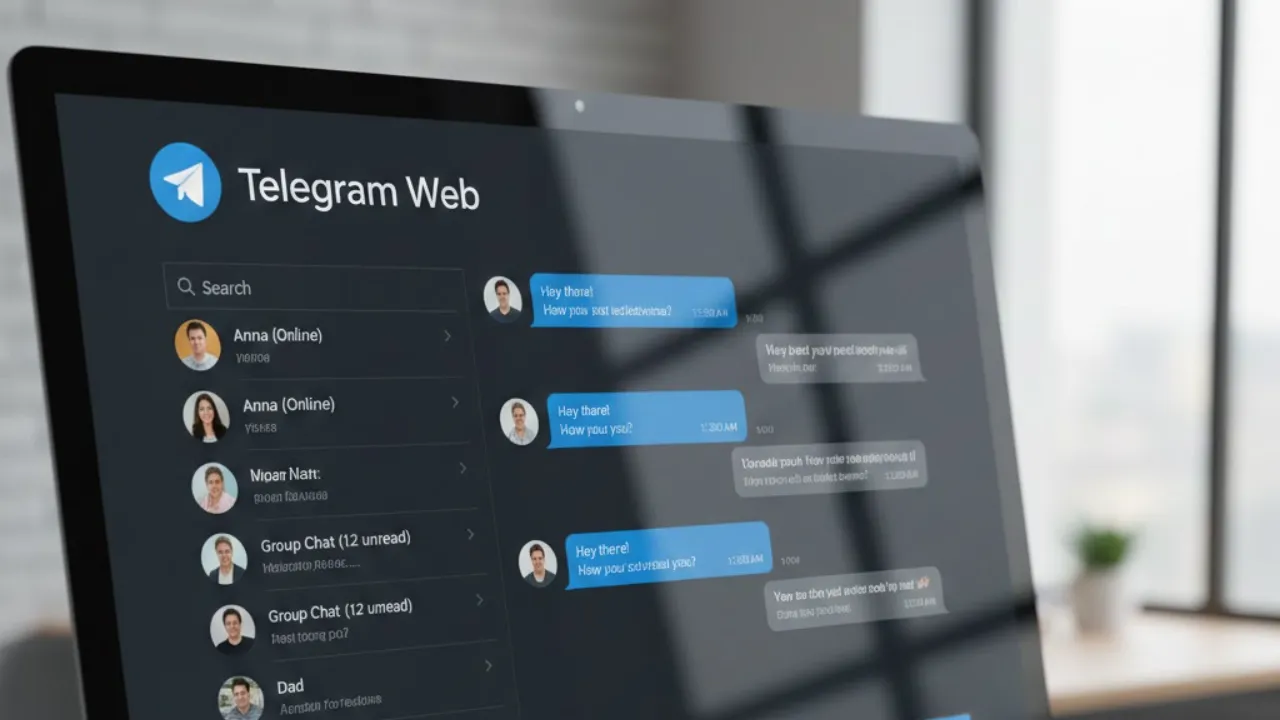
Telegram Web offers a fast and convenient way to access your Telegram conversations directly from a browser. Whether you’re working on a PC, multitasking, or simply prefer typing on a keyboard, Telegram Web mirrors your mobile chats in real time and lets you send messages, share media, and manage groups without needing to install a desktop application.
It works seamlessly with your Telegram account, giving you immediate access to all your chats, files, and contacts. You can choose to log in via QR code or phone number, depending on what’s easiest for you.
How to Use Telegram Web
Getting started with Telegram Web is quick and simple. You can sign in using either:
- QR code login (fast and convenient), or
- Phone number login (useful if you can’t scan a QR code).
Below is a step-by-step guide for both methods.
1. How to Use Telegram Web Using QR Code
- Open a web browser on your computer and go to web.telegram.org.
- Open the Telegram app on your smartphone.
- Tap the menu icon (three horizontal lines) or go to Settings, depending on your device.
- Select Devices.
- Tap Link Desktop Device.
- Your phone’s camera will open — point it at the QR code displayed on your computer.
- As soon as the QR code is scanned, Telegram Web will log you in instantly.
This is the fastest and most secure way to access Telegram on your PC.
2. How to Use Telegram Web Using Your Phone Number
- Open your browser and go to web.telegram.org.
- Click Log in by phone number.
- Select your country, enter your phone number, and click Next.
- Open Telegram on your phone — you will receive a login code.
- Enter the code on the website.
- Once verified, your Telegram account will open automatically in the browser.
This method works even if you cannot scan the QR code.
FAQs
1. What is Telegram Web?
Telegram Web is the browser-based version of Telegram that lets you access your chats, send messages, view media, and manage groups directly from a computer — without installing a desktop app.
2. How do I log in to Telegram Web using a QR code?
Go to web.telegram.org, open Telegram on your phone, navigate to Settings > Devices > Link Desktop Device, and scan the QR code shown on your computer screen.
3. Can I use Telegram Web without scanning a QR code?
Yes. You can log in using your phone number by entering it on web.telegram.org and verifying it with the code sent to your Telegram app.
4. Does Telegram Web sync with my mobile app?
Yes. Telegram Web mirrors all your chats in real time, so anything you send or receive updates instantly across your devices.
5. Do I need to install anything to use Telegram Web?
No. Telegram Web works completely inside your browser — you don’t need to download or install any software.
Also read;
Motorola Edge 70 India Launch Teased: Slim Design, Colour Options, and Key Specs Revealed
Realme 16 Pro+ 5G Leak Reveals RAM, Storage, and Colour Options Ahead of Launch
India’s Tablet Market Shrinks 19.7% in Q3 2025, Despite Strong Consumer Demand: IDC

Post Comment