
WhatsApp is not just for chatting anymore. It also lets you make quick edits to videos before you send them to anyone. This built-in editor is simple, fast, and works on both Android and iPhone. You do not need any extra app if you only want basic changes.
In this guide, you will learn how to edit videos inside WhatsApp, what tools are available, and what limitations you should keep in mind.
Also read: What Different WhatsApp Call Messages Really Mean and Why You See Them
Where the WhatsApp Video Editor Appears
Whenever you select a video from your gallery or record a new one using WhatsApp’s camera, the video editor opens automatically. This happens before the video is sent, giving you a chance to customize it.
The editing screen looks similar on Android and iPhone, though icons may be placed slightly differently.
How to Trim a Video in WhatsApp
Trimming is the most commonly used feature.
Steps:
- Open WhatsApp and go to any chat.
- Tap the attachment icon and select Gallery or Camera.
- Choose a video.
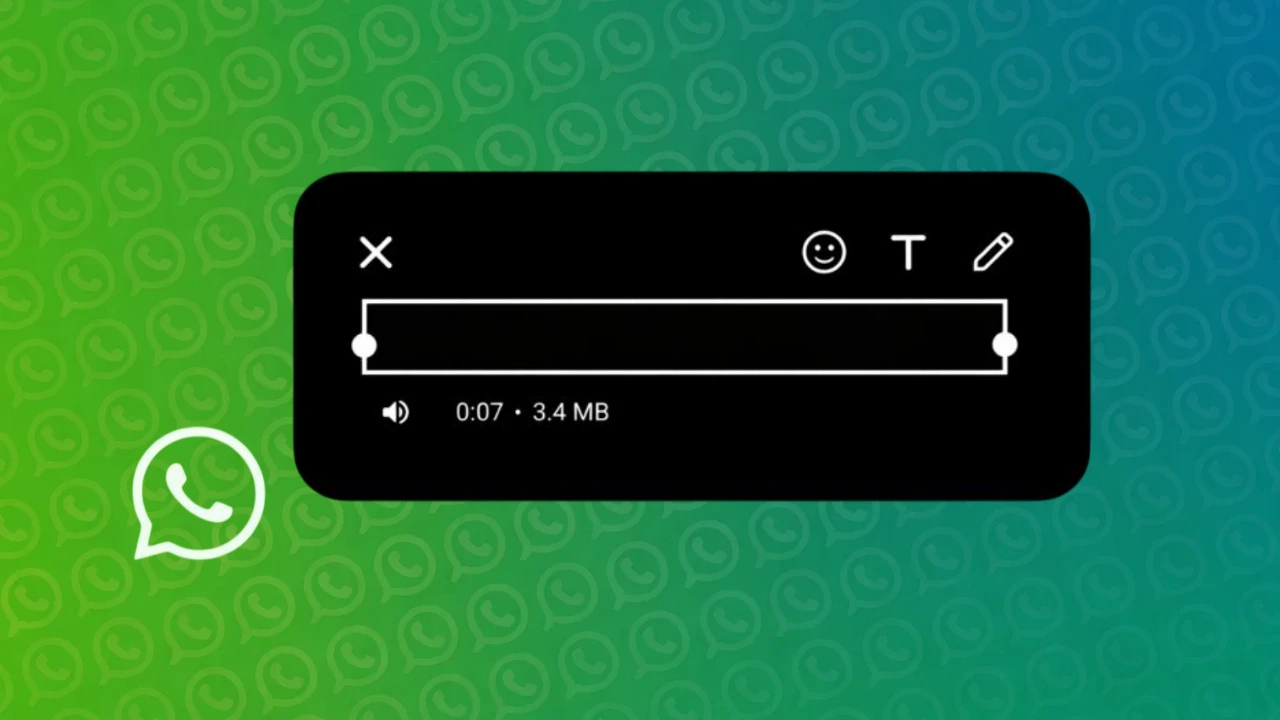
- Use the white sliders on the timeline to cut the start or end.
- Preview the trimmed clip.
- Tap Send.
This is useful when you want to remove unnecessary parts or reduce video length.
How to Mute Video Audio
If your video has unwanted background noise, WhatsApp allows you to mute it.
How it works:
- Tap the speaker icon on the video editing screen.
- The audio will be removed completely.
- The video will be sent without sound.
This option is helpful for silent clips, screen recordings, or videos with poor audio quality.
Adding Text to WhatsApp Videos
You can add text directly on top of your video.
Text options include:
- Change text color
- Resize text
- Move text anywhere on the screen
- Use different text styles
Text is often used for short captions, explanations, or reactions.
Drawing and Emoji Tools
WhatsApp also provides basic creative tools.
You can:
- Draw on the video using the pencil tool
- Choose different colors
- Add emojis and stickers
These tools are mostly used for casual and fun edits rather than professional work.
Video Size and Length Limits
While editing is easy, WhatsApp has some limits.
Important things to know:
- Large videos may be compressed automatically.
- Very long videos may not upload if your internet is slow.
- Quality may reduce slightly after sending.
If video quality is important, keep edits minimal and use shorter clips.
Differences Between Android and iPhone
The core features are the same on both platforms, but there are small differences.
- iPhone usually has smoother preview animations.
- Android offers similar tools but layout may vary by device.
- Both support trimming, text, emoji, and mute options.
No major feature is missing on either platform.
When WhatsApp Video Editing Is Enough
WhatsApp’s editor is perfect if:
- You want quick edits
- You are sharing videos in chats or groups
- You do not need advanced effects
If you need transitions, filters, or music syncing, a dedicated video editor is better.
Also read: How to Archive Instagram Posts Without Deleting Them
Final Thoughts
WhatsApp’s built-in video editor is simple but effective. It allows you to trim, mute, add text, and personalize videos without leaving the app. For everyday sharing, this saves time and storage space since no extra app is required.