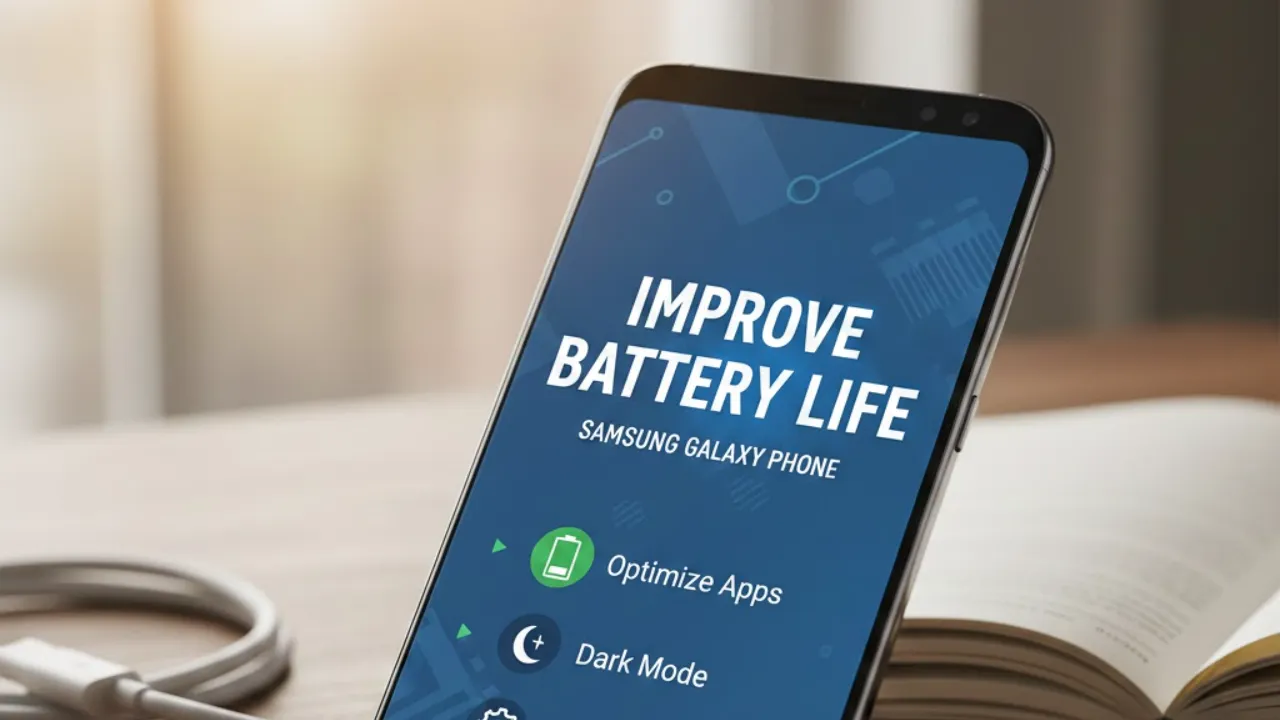

Improve Battery Life on Your Samsung Galaxy Phone: Samsung’s Galaxy lineup — from the S25 Ultra to the Z Fold 7 and Z Flip 7 — is known for powerful hardware and feature-rich software. But with all those features, it’s easy for battery life to suffer. If your phone struggles to last a full day, you don’t need to disable major features or lower your display refresh rate. With a few smart tweaks, you can get more screen time without compromising your experience.
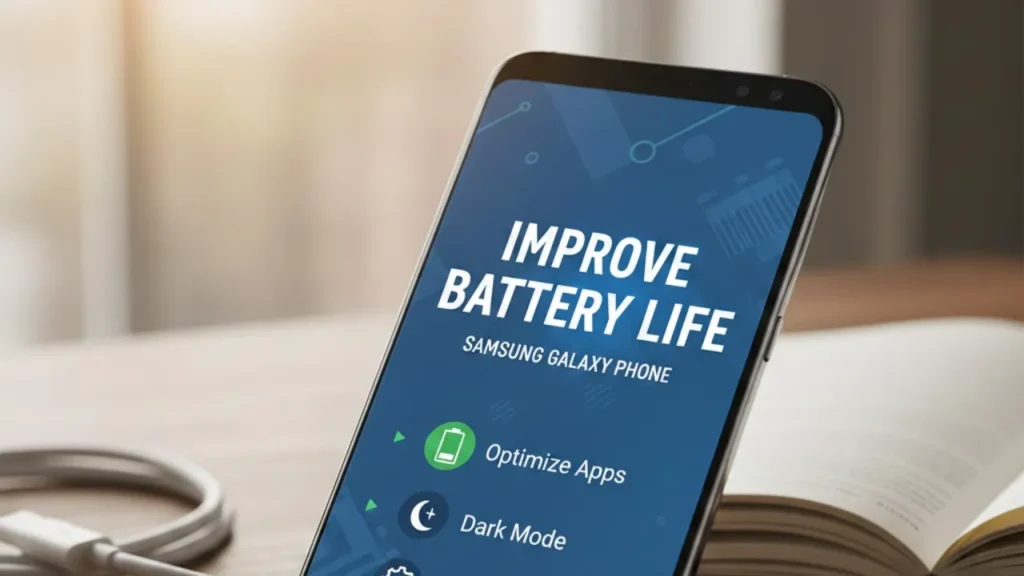
Below are seven practical ways to extend your Samsung Galaxy phone’s battery life.
1. Enable Dark Mode for Better Efficiency
Most Samsung phones use AMOLED displays, which only light up the pixels that are needed. This means black areas of the screen use almost no power. Using Dark Mode or a dark wallpaper reduces power draw and gives a small but meaningful battery boost.
How to enable Dark Mode:
Settings → Display → Dark
(Changing wallpaper alone won’t help as much as turning on full Dark Mode.)
2. Turn On Adaptive Brightness
Samsung’s ambient light detection has improved over the years. Adaptive Brightness automatically adjusts screen brightness based on your surroundings, keeping the display from being unnecessarily bright and saving battery throughout the day.
How to enable:
Settings → Display → Adaptive Brightness
You can always fine-tune brightness using the Quick Settings slider.
3. Remove or Disable Unnecessary Apps
Galaxy phones ship with a lot of preinstalled apps — Facebook, Microsoft 365, OneDrive, Samsung apps, and more. Many of them run in the background and drain the battery.
Uninstall or disable the ones you don’t use. Apps like Samsung Smart TV, OneDrive, Facebook, Outlook, and Microsoft 365 are safe to remove if they’re not essential to you.
How to uninstall:
Tap and hold an app → Tap Uninstall
Less bloat = fewer background processes = better battery life.
4. Check Which Apps Are Draining Your Battery
Some apps naturally consume more power due to GPS, 5G usage, or frequent background activity. Samsung’s built-in battery tools help you identify and limit them.
How to check:
Settings → Battery and device care → Battery → Background usage limits
Here, you can restrict apps from running unnecessarily in the background.
5. Download Content Offline Before Traveling
Streaming videos, music, and even maps over mobile data drains your battery quickly — especially on 5G.
If you commute daily or listen to the same playlists/podcasts, download them over Wi-Fi beforehand.
Examples:
- YouTube: Tap the Download button
- Spotify: Download entire playlists
- Google Maps: Download offline map areas
This reduces data usage, heat, and battery drain.
6. Use Always-On Display (AOD) Wisely
On flagship models with LTPO displays (like the S25 Ultra), AOD runs at just 1Hz and is very efficient. But on mid-range phones with a minimum 60Hz refresh rate, AOD can drain more power.
The best approach? Schedule AOD only when you need it.
How to set a schedule:
Settings → Lock screen → Always On Display → Show as scheduled
7. Switch to Light Performance Mode
If you rarely play heavy games and mainly use your phone for everyday tasks, the Light Performance profile is a great battery saver. It prioritizes efficiency and lower temperatures over raw speed — and most users won’t notice any difference in performance.
How to enable:
Settings → Battery → Performance profile → Light
Final Thoughts
Improving battery life on your Galaxy phone doesn’t require sacrificing the fast and fluid experience Samsung is known for. With these smart adjustments, you can get significantly better endurance while keeping all your favorite features intact.
Also read;
Apple Reveals the 2025 Apple App Store Award Winners — You’ll Be Surprised Which Apps Made the List
WhatsApp Just Got a Massive AI Upgrade — Imagine Tools Are Now Coming to WhatsApp Status Updates!